
VIP member
Management Platform for Epidemic Prevention Screening System
Epidemic Prevention Screening System Management Platform 1. Management Platform Homepage The management platform homepage displays statistics on the n
Product details
Management Platform for Epidemic Prevention Screening System
1、 Management Platform Homepage
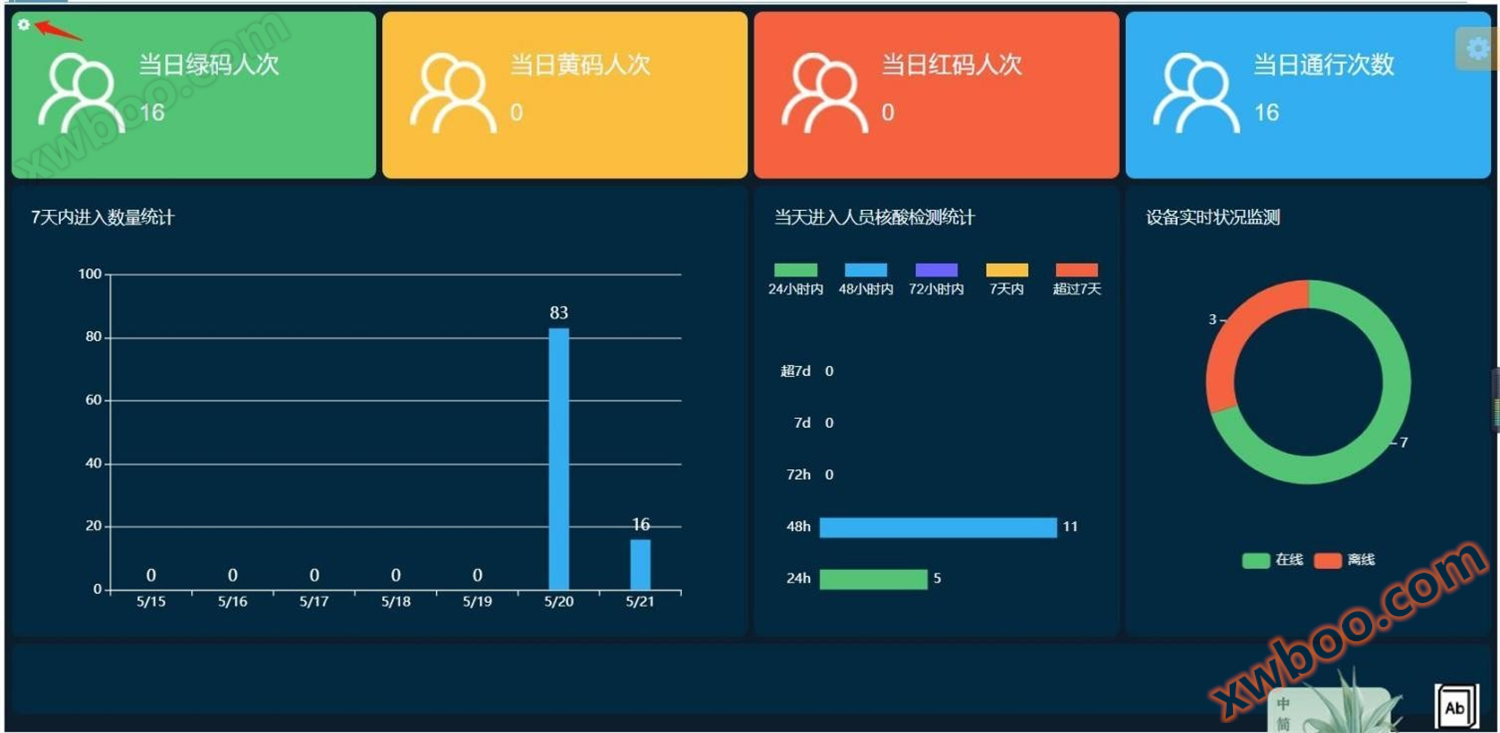
The homepage of the management platform displays the statistics of personnel entering the venue on the same day, including their code color and nucleic acid status7 Daily entry count and equipmentOnline situation statistics, etc., can be selected in the upper left corner of the homepage for specific location data statistics.

Epidemic prevention and access management
Epidemic prevention and access management function:● Tablet terminal management ● Verification records ● Handheld terminal management ● Group management ● User management
1Tablet terminal management
Main functions: binding of front-end devices, remote restart of front-end devices, front-end device function settings, device information query, etc
 |
At the bottomBinding of front-end devices
Obtain the front-endMACAfter the address, clickNew addition”.
After adding, the interface for adding devices will pop up. After entering the corresponding correct information, clickJust 'save'(The detailed address must be accurateFill in as shown in the figure:

At the bottom1.2 Front end device function settings
Can set front-end device volume, door opening duration, mask detection, and traffic conditions settings(24 hour/48hour/72hour
/7Time limit setting for nucleic acid testing
Select nucleic acid 24 Hour, then 24 Personnel within the hour of nucleic acid testing can enter, exceeding 24 The nucleic acid personnel intercept during the hour, and the same applies to other time periods.

2Verification records
Can query the verification records of the corresponding location or query the verification records of the corresponding front-end equipment, and can be conducted according to different screening conditionsSearch. After encrypting all sensitive personnel information, it will be desensitized and displayed.

*The platform keeps the verification records of the past month.
3Group management
Click on Group Management, enter the group name, and click on Add Group to complete the group addition.
clickEdit "to change the group name, click" Delete "to delete the group
4Personnel management

Add new personnel, click on 'Register Personnel' to enter the registration personnel interface, and fill in the information accurately
Personnel inquiry: Fill in the corresponding information in the corresponding box, and then clickSearch to retrieve the personnel information
At the bottomSupport personnel can register independently through the registration QR code of the corresponding location, and contact technical support through the QR code of the self registered locationPersonnel acquisition.

At the bottomNewly registered personnel pass the screening criteriaQuery 'Allocation Status' -' Unallocated '
After finding unassigned personnel, click edit,
Online inquiry
-
Contacts
-
Company
-
Telephone
-
Email
-
WeChat
-
Verification Code
-
Message Content
-