
VIP member
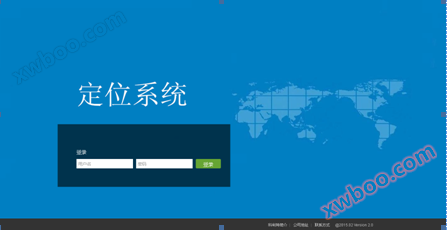
Personnel and vehicle positioning system platform
Function Introduction 1. Alarm Information 2. Device Information 3. Password Modification 4. Trajectory Report 5. Online Monitoring 6. Default Map 7.
Product details
Feature Introduction
1. Alarm information 2. Device information 3. Password modification 4. Trajectory report 5. Online monitoring 6. Default map 7. Role differentiation 8. Number statistics 9. Voice broadcast 9. Alarm information settings 10. Main alarms 11. Trajectory playback 12. Trajectory statistics 13. Batch setting area 14. Attendance function 15. Indoor positioning function 16. Exit the system.
1. Alarm information
Display the alarm information of any device under the user.Click on the alarm location to view the location where the alarm occurred.
Select any alarm message (if the alarm cannot be viewed for a long time and the latitude and longitude are both 0)Click on the alarm location to view the location where the alarm occurred.

2. Equipment information
The device information bar can display all device information under the current user: device registration number, device number, region, line, binding number, and name.

3. Change password
Enter the old password, new password, and click submit.
4. Trajectory report

5. Online monitoring

There are 3 maps for online monitoring that can be switched and browsed: Baidu Maps, Google Maps, and Tian Maps (currently only Baidu is available)
1) Click on the small triangle in front of the line to display all devices of this user under this line.
2) By selecting the corresponding device number, you can subscribe to the device and track its current location on the map. The device information bar displays the specific information of whether the device is online or not.
3) When unchecked, the devices on the map disappear.
4)The online status icon is colored, and the offline status icon is gray.
5) Battery level: The battery level will be displayed in the personnel information.

6. Default map settings
The function is to present the map according to the user's set geographical location and scale at the software startup time.

7. Role differentiation
This function uses different icons to represent different positions, such as The representative is the management personnel,
 Representing construction workers.
8. Voice broadcasting
This feature is limited to supporting the use of voice broadcasting devices:

9. Alarm information setting
(1)Click on 'Alert'
(2) Check 'Defense', if you need a webpage notification, check 'Website Notification', complete the settings, click 'Submit'
10. Main alarm
Not wearing an alarm: If personnel do not wear a safety helmet properly, an alarm will be triggered every three to five minutes, as shown in the figure.

Cross regional alarm: After setting up the defense and setting the area, if an alarm is generated, the lower right corner of the webpage will prompt the alarm information, and the webpage will also have a sound prompt, and the icon will turn red. As shown in the picture:
11. Track playback
Click on the device on the map, click on "replay", or directly click on "trajectory replay" in the function navigation;
(1)Select the device to replay the trajectory
(2)Select the start and end time for trajectory playback
(3)Click on the trajectory query, and after the query is complete, the following image will appear

You can click the "Start", "Pause", "Replay", "Clear Trajectory", and "Playback Rate" function keys according to your personal situation; If the selected device has no trajectory during the start and end time, there will be a prompt window in the lower right corner of the interface, indicating: 'There is no trajectory data during this time interval';
Note: Tracking time can only be queried24Data within the hour, exceeding24Hours will not be queried.
12. Trajectory statistics
In the bottom left corner of the trajectory playback page, there is content as shown in the following figure:
At the same time, it also has the function of generating trajectory statistics reports:
(1)Open the trajectory playback page(2)Enter the start and end time to be queried(3)Click on 'Excel Report'(4)Regarding the generatedExcelOpen or save the table.
Users can also choose to query the trajectory report information of personnel in the entire team, achieving unified management of the team.
13. Batch setting of regions
1. Click on the batch settings area in the upper right corner of the map.
2. Select the shape of the drawing area, as shown in the following figure:
3. After drawing the area, click on the area to set it up, as shown in the following figure
14. Attendance function
It has the following functions:
1) Set personal attendance time
2) Query personal attendance time
3)Set attendance time in batches by team
4) Batch set attendance time by account
5) Query attendance information for entry and exit area methods
6) Check in alarm method to query attendance information
7) Team attendanceEXCELTable statistics
8)Personal attendanceEXCELTable statistics
15. Indoor statistical function
It has the following functions:
1)real-time monitoring
① From the 6th floor to the 1st floor, walk from the 1st floor to the 6th floor.


(Images will be displayed at each specific floor when walking)
② Walking in the corridor


③ Enter Room 1, enter Room 3


2) Floor switching
Click on the left floor of the map to switchThe 'Floor' button inside,The map will display the corresponding floor map

3) Floor statistics (see the number of online users and detailed list of selected floors)


16. Exit the system
Click on the platform homepage“ ”You can return to the login interface.
Online inquiry
-
Contacts
-
Company
-
Telephone
-
Email
-
WeChat
-
Verification Code
-
Message Content
-